Getting Started
Upon opening the generate page, a new workspace will be created. It will be populated with some prefilled information (to enhance the preview). You can resize the information panel and preview panel by dragging the handle sideways (on large screen). On smaller screen, the preview is under the information panel.
Adding Data
Input the apporpriate data in appropriate sections by the navigating between dropdown entries.
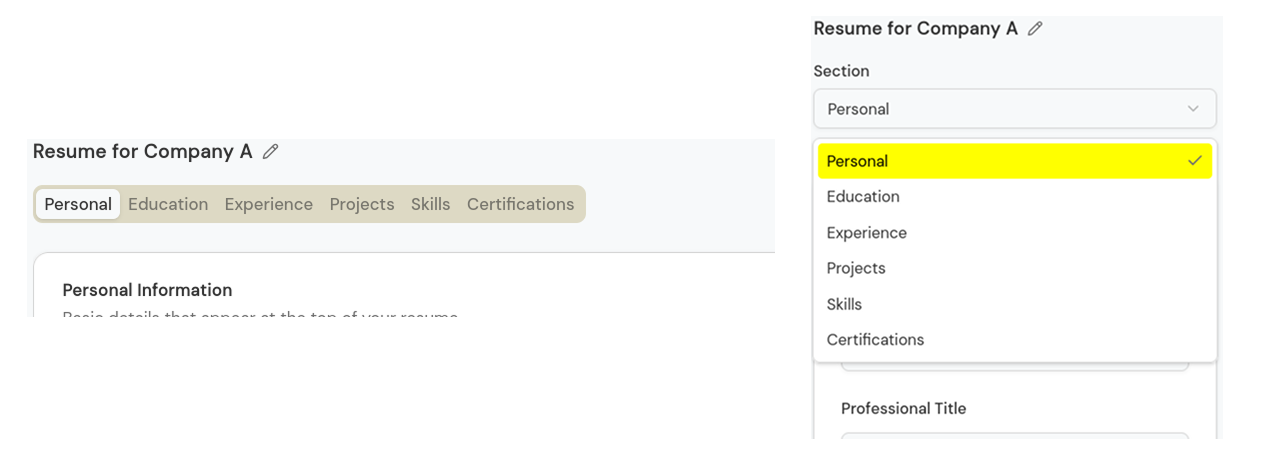
Tabs are deprecated to allow many sections.
The preview will be updated as you type.
Your data will be saved automatically when you:
- Navigate between sections
- Rename the workspace
- Update any section(rename/hide/reorder)
- Switch between workspaces.
- Generate a pdf
- Import/export a backup
Note that the saving occurs in your current browser only. If you want to use another browser, use the import/export functionalities.
Sections like education, experience etc feature folded-list entry. Use the caret icon on the left side of each entry to fold-unfold an entry. You can reorder and delete an entry with the icons on the right side.
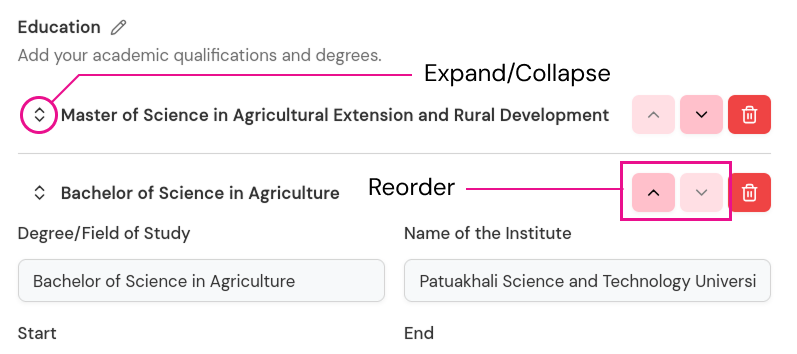
Note that if a section has no entry, it will be hidden from the resume. However, you can hide a section without deleting all of the entries of that section.
Visit customization for customizing various aspects of your resume.