Workspaces
Workspaces allow you to save different resume for different purpose.
For example, you might create a resume targeting company A, and later you need a slightly different resume for company B. In that case, you can just create a new workspace to modify the resume, while keeping the company A resume intact. This will allow a modification at later date. Very handy.
Creating a Workspace
Menu > Workspace > New Workspace
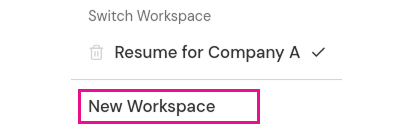
Creating a new workspace will copy over the currently selected workspace’s data to the new one.
Renaming a Workspace
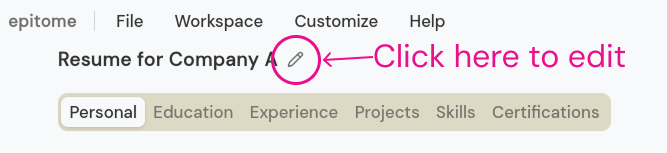
Click the pencil icon besides the Workspace name in the generate page.
Deletion
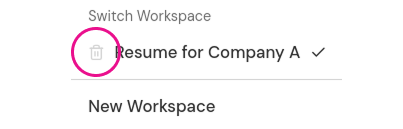
You may delete a workspace (why though? workspaces are unlimited) by clicking the trash icon in the workspace menu.
Resetting a Workspace
Menu > Workspace > Reset Current Workspace
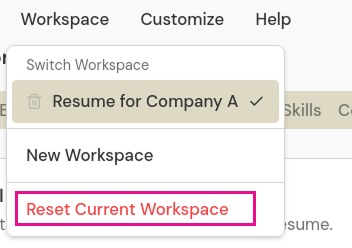
This will revert all the input data to empty value in the currently selected workspace. It is recommended to use the new workspace feature to modify something, rather than erasing all the data you’ve entered. However, the option is there for UX purposes. Some might need it.
Deleting all Workspaces
See Data Deletion